Deploy User Agent via GPO
Learn how to deploy the Kabeen native agent using Microsoft GPO
Download the Installation Package
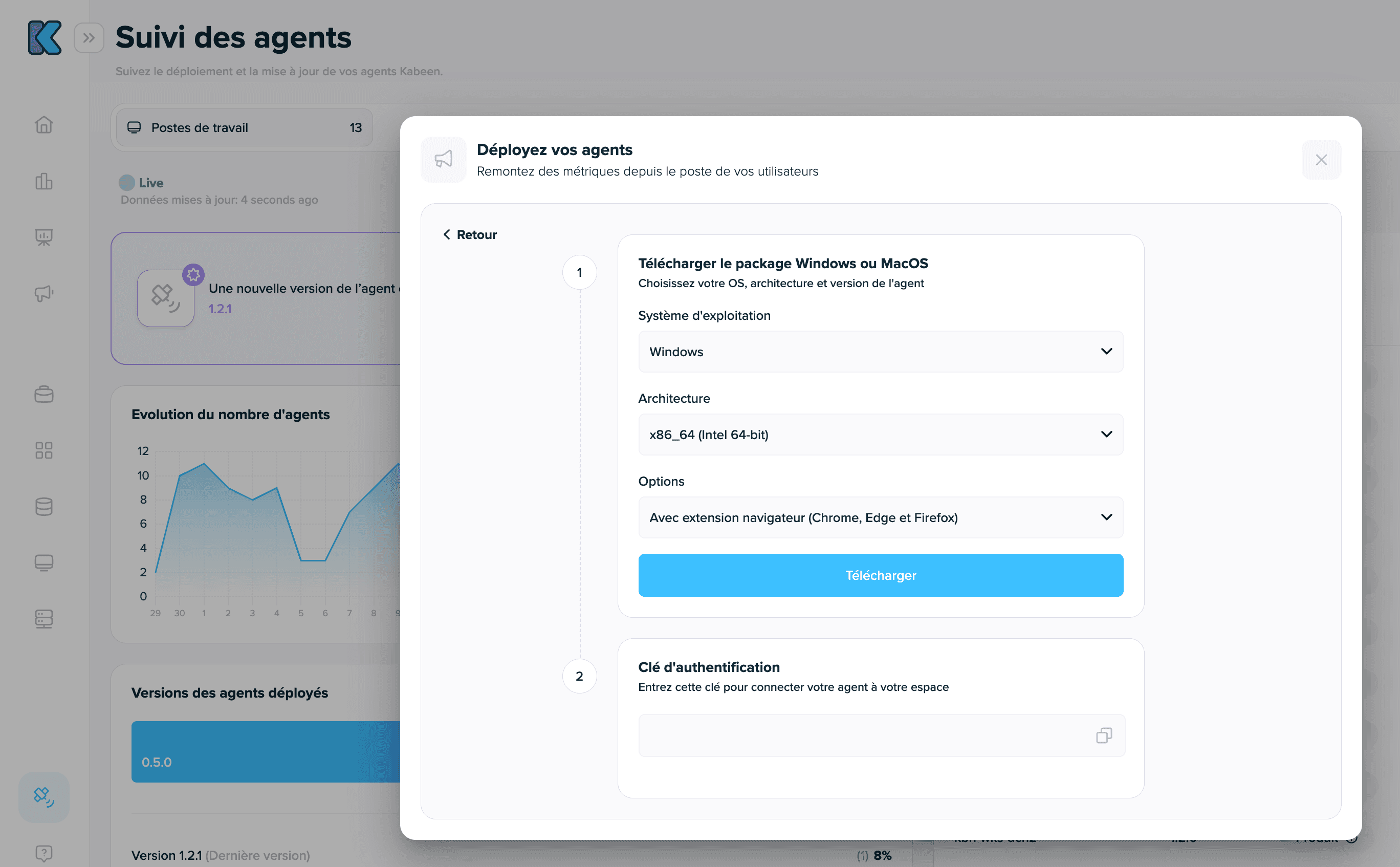
Download the installation package available in MSI format from the Kabeen platform.
Navigate to the Agent Tracking menu, then click Download Package
Create the Distribution Point
For MSI deployment through GPO, the package must be shared on a network folder.
- Create a new network share on a server of your choice (file server or domain controller, for example).
- Grant read permissions to all domain users on this network share.
- Place the .msi file in this network share
Deploy the Package
- Create a GPO in "Group Policy Objects" and give it a name.
- From "Group Policy Management", create a new Package from User Configuration > Policies > Software Settings > Software Installation.
- Add the MSI file from the network share prepared above and choose the Assigned deployment mode.
- In the "Deployment" tab, check the box Install this application at logon
- Once the GPO is finalized, link the Policy to the desired OU (containing user accounts).
Configure Agent Settings
The Kabeen native agent takes its configuration from the registry.
This configuration authenticates the agent using a key and assigns the user to a specific Kabeen team.
- In the Group Policy Management Editor, open User Configuration > Preferences > Windows Settings > Registry
- Then, right-click on Registry and click New Key (x3).
- Leave the action on Update
Hive: HKEY_CURRENT_USER
Path: SOFTWARE\Policies\Kabeen\Configuration
| Value | Type | Description | Data (Example) |
|---|---|---|---|
| ApiKey | REG_SZ | Kabeen API Key | kabeen-111-222-333 |
| Structure | REG_SZ | User group UUID | xxxxxx-xxx-xxxx-xx |
| Team | REG_SZ | Team UUID | yyyyyy-yyy-yyyy-yy |
| LogLevel | REG_SZ | Log level, Windows only (optional) | Info |
| HideTrayIcon | REG_DWORD | Hides the agent icon in the notification area (optional) | 00000001 |

Optional settings
Two optional values can be added to the same SOFTWARE\\Policies\\Kabeen\\Configuration key:
LogLevel(REG_SZ, Windows only): the agent's log level. Accepted values (case-insensitive):Error,Warn,Info,Debug,Trace. Default:Info.HideTrayIcon(REG_DWORDset to00000001, orREG_SZ"1"/"true"): hides the agent icon in the Windows notification area.
Unlike the
ApiKey/Structure/Teamtrio (re-read automatically within ~10 s),LogLevelandHideTrayIconare read only at startup: restart the agent after changing them.
⚠️ Warning — loss of access to the UI. Once the icon is hidden (
HideTrayIcon), there is no longer any way to open the settings or re-authenticate the agent from the workstation. Reserve this setting for fully managed deployments (trio pushed via GPO/MDM). To restore the icon, remove theHideTrayIconvalue and restart the agent.